Install HTML Email Signature - Outlook (Mac) 2016


Please read this article about a recent Microsoft update which may effect your HTML email signature.
Step 1
Open your supplied HTML file in Google Chrome or Mozilla Firefox.
Do not use Safari during the installation process as it may cause formatting issues. Copy your email signature from Google Chrome or Mozilla Firefox instead.
Once the Email Signature is open in your web browser, press CTRL + A (Command + A for Mac) to highlight the signature, then press Command + C to copy the signature.
Do not use your mouse to select the area, only use Command + A as you may miss out on grabbing some of the code.
Step 2
Open Outlook for Mac 2016.
Step 3
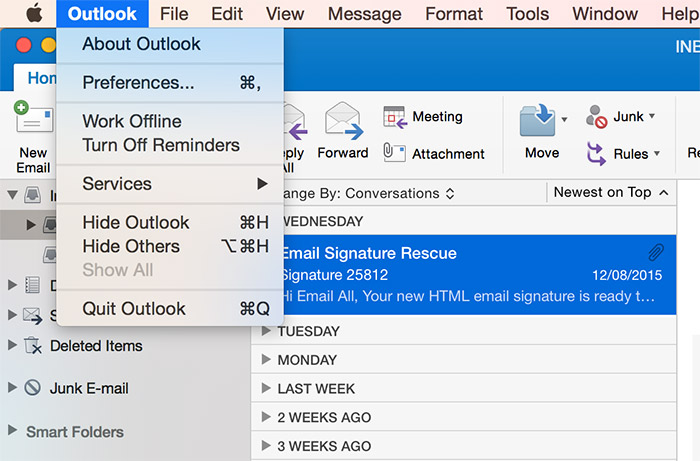
Once Outlook for Mac 2016 is open, select Outlook from the menu bar, then Preferences.
Step 4
Select Signatures under the Email section.

Step 5
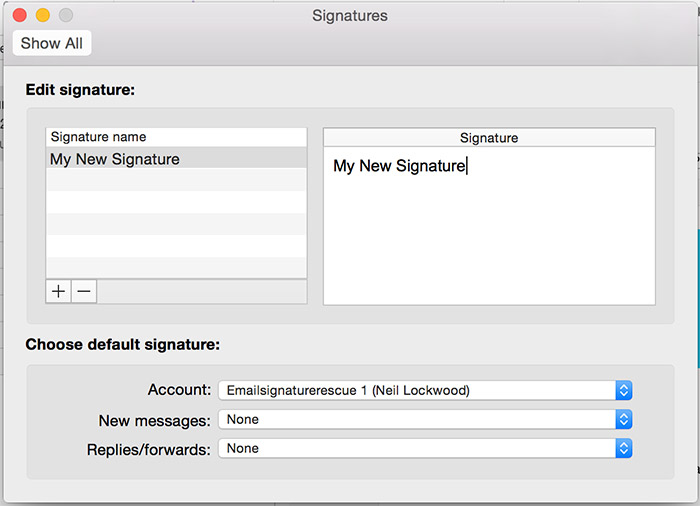
When your Signatures window opens, click on the + (plus) icon to create a new signature and type a name for your email signature, hit enter.
Step 6
Paste your signature into the field by pressing Command + V. Set your signature as the default for New Messages and Replies/forwards below.
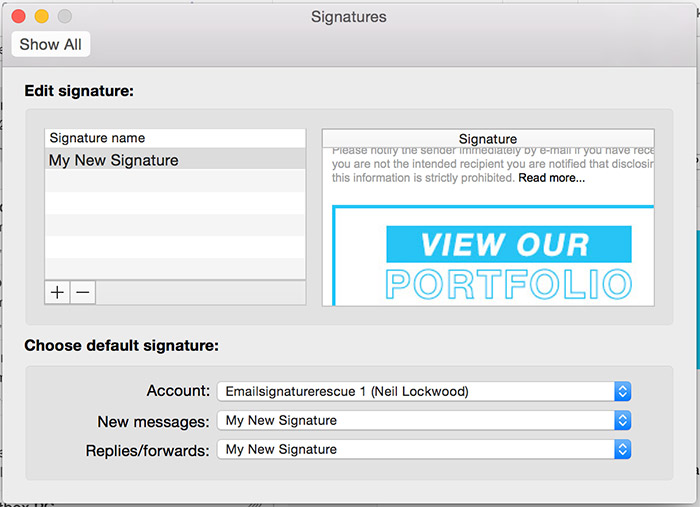
If the email signature preview in the settings area is cutting off your email signature, double check if your email signature is setup correctly, by composing a new email message instead.
Step 7
Close your settings and compose a new email. Your email signature should be automatically inserted into your emails.
Congratulations!
That’s it. Try your email signature now by composing an email to yourself or hello@thecreativenoise.com
Frequently Asked Questions





In our 35 years helping businesses launch and grow we’ve learnt a thing or two about what works and what doesn’t.
Let us share all our juicy secrets with you.
Pop in your email address to stay up-to-date on news, tips and tools.